Write the card on Windows
write-card.cmd writes the whole card on a Windows 10 or 11 PC with nothing
installed. It takes about five minutes, a microSD card of 1 GB or more, and a
card reader.
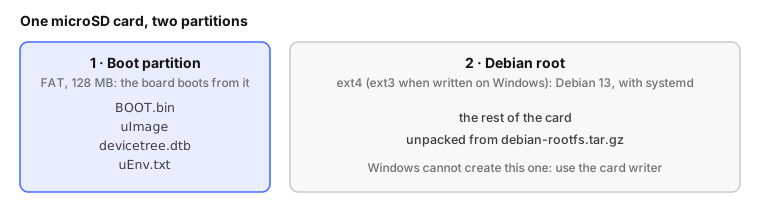
Use a new card if you can, and keep the one in the board as it is
Going back to the old firmware is then just swapping the cards.
1. Download the release. Make a new folder, for example
Downloads\fishball-v2.3. From the
latest release,
save these seven files into it:
| File | What it is |
|---|---|
write-card.cmd |
this card writer |
BOOT.bin |
the boot loader and FPGA design |
uImage |
the Linux kernel |
devicetree.dtb |
the hardware description the kernel reads |
uEnv.txt |
the boot settings |
debian-rootfs.tar.gz |
Debian, about 100 MB |
SHA256SUMS |
checksums for all of the above |
- If the browser warns that
write-card.cmd"is not commonly downloaded", choose Keep. - Check that no file was renamed on the way (
uImage (1)and the like): the script looks for the names above.
2. Unplug the board from this PC, and leave it unplugged while the script runs: the factory firmware shows up on Windows as a small USB drive, which is just one more disk in the list.
| Card | Now |
|---|---|
| rewriting the board's own card | take it out of the board |
| a new card | leave the old one where it is for the moment |
3. Put the card in the reader.
If Windows offers to format the card, click Cancel
Every time that message appears, at this step or later.
4. Double-click write-card.cmd.
- Windows may show "Windows protected your PC". Click More info, then Run anyway. It appears because the file came from the internet.
- Then Windows asks whether the app may make changes to your device. Click Yes: writing a whole card needs administrator rights. The rest happens in the new window that opens.
5. Choose the card. The script lists what it can write, like this:
  Cards and USB disks this script can write:
  Disk 2   Generic STORAGE DEVICE              31.9 GB  USB   E: 'BOOT' FAT32
Pick by size: a 32 GB card reads as about 31.9 GB. Type its disk number,
here 2, and press Enter.
6. Let it back up the card, then type ERASE. The backup lands in
card-backup-<date> next to the script. Typing anything other than ERASE, in
capitals, stops the script without writing anything.
7. Wait. Writing takes one to three minutes, depending on the card. Reading it back takes about as long again. The script finishes with:
  OK: all 407 MB read back identical
  OK: Windows reads the boot partition as E: FISHBOOT, and all four boot files match
== Done
  The card is ready. You can take it out of the reader now.
8. Start the board on the new card.
- With the board unpowered, take the old card out (keep it: it is your way back) and put the new one in.
- Check the
BOOTDIP switch next toRST: both sliders away fromON(SD mode). Boards ship like that. -
Connect both USB-C sockets: one to a mains USB charger, the other to your PC.
On a laptop's USB power alone the board can hang
- Wait about a minute.
9. Check that it runs the new firmware. Open a Command Prompt and log in to the board over the USB cable:
# run from: a Command Prompt on the PC the board is plugged into
ssh root@192.168.2.1
The password is analog. Once logged in:
# run on the board
cat /etc/os-release      # first line: PRETTY_NAME="Debian GNU/Linux 13 (trixie)"
uname -r                 # 6.12.0-...
board-info.cmd, from the repository's tools,
shows the same information without logging in. SDR software reaches the board
at ip:192.168.2.1, as before.
If something goes wrong
The error messages, what the script checks, and going back to the old firmware: the Windows card writer, in detail.
Next: connect and find the board.